

How To Add More Quality Connections On LinkedIn By Personalizing Your Connection Requests – EVERY time!
In this fast-paced, information-packed world of Social Media, there is far too much automation and not enough personal “touches”.
As human beings, we want to feel like we matter.
We want to connect human-to-human, not computer-to-computer.
One of the often overlooked aspects of building business connections is found within LinkedIn connections.
One of the #1 tips I share in my training is how important it is to send personalized connection requests on LinkedIn.
Why?
Each and every touchpoint matters when it comes to building and deepening relationships.
Personalizing your connection requests not only helps you develop quality relationships, but it also makes it much more likely your dream connection will accept your connection request.
- Refresh their memory as to how you met
- Let them know why you want to get in touch
- Do you have a connection in common? Let them know.
- Look through their profile, what other “speaking points” can you start a conversation about?
Unfortunately, LinkedIn doesn’t make this option mandatory for each and every connection request. This frustrates me immensely, because LinkedIn specifically encourages us to connect with people we know.

Here are the top ways you can make sure you personalize your connection request each and every time.
#1 Search for your connection using the “Search” field and click the “Connect” button.
Step #1: Search for connection

Step #2: Click “Connect”

Step #3: Personalize

#2 Add connections through the “People You May Know” section
In the top navigation bar, click on “My Network”, then “People You May Know”.
LinkedIn’s algorithm pairs you up with people you’re more likely to know based on your current connections.
To personalize their connection request, do NOT click on the “Connect” button beneath their name.
Instead, click on their photo, which will take you to their LinkedIn page.
Personalize your connection request by following Step #2 & Step #3 above.
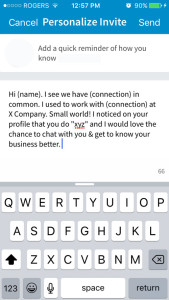
#3 Personalize your connection request via iPhone/iPad
Search for your dream connection on your phone.
Step #1: In the top right hand corner, click on the three dots.

Step #2: Click on “Personalize invite”

Step #3 Personalize your invite.
So there you have it. No more excuses for not being able to personalize that connection request on LinkedIn.
Make sure you customize your connection request EACH and EVERY time to ensure your dream contact accepts your request!
If you found this tip valuable, please share it via your Social Networks….and if you’re looking for more information on how to REPLY to connection requests, be sure to check out my post here: https://punchmedia.ca/connection_requests_linkedin/
