
How To Back Up & Archive Your LinkedIn Data
Backing up your data is like doing your taxes. You put it off until you actually HAVE to. Or, you’ve learned your lesson the hard way by having your system crash and you’ve lost all your data.
We have to remember that sites like LinkedIn are “walled gardens”. They hold the key to the data if you don’t back it up!
Remember to download and archive your data at least every quarter.
Here’s how:
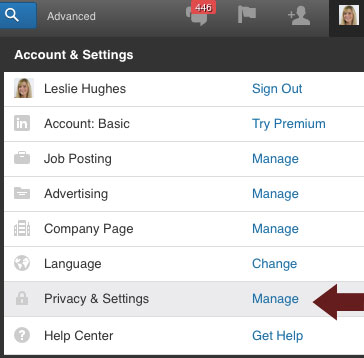
STEP 1: Mouse over your image in the top right hand side and scroll down to the “Privacy & Settings” link.
STEP 2: Scroll down and click on “Getting an archive of your data”
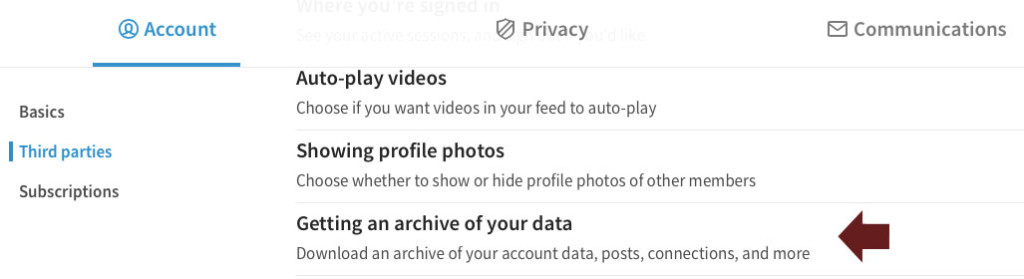
(You probably will have to re-enter your password)
STEP 3: Click on “Request archive”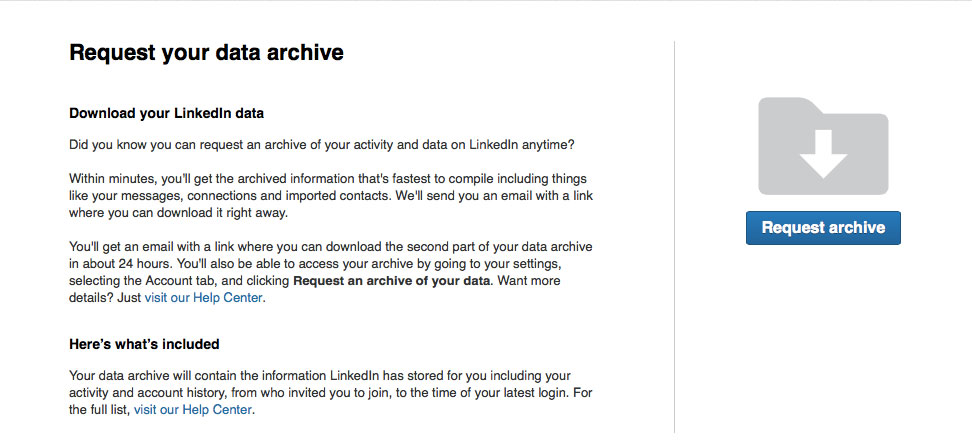
Then, you’ll see this screen (below) and the data will be forwarded to you via email.
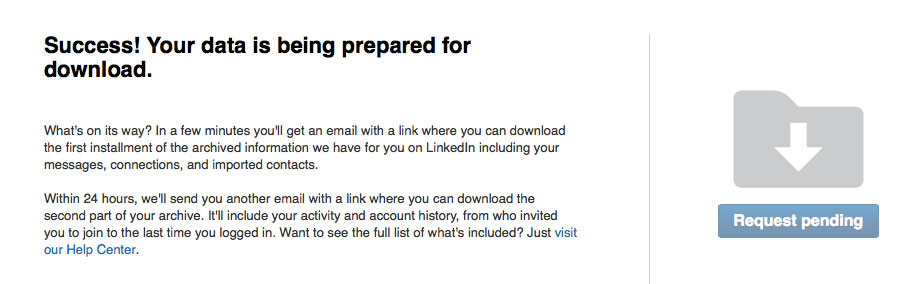
You’ll receive an email with a link to download your data. (Once again you may need to re-enter your password)
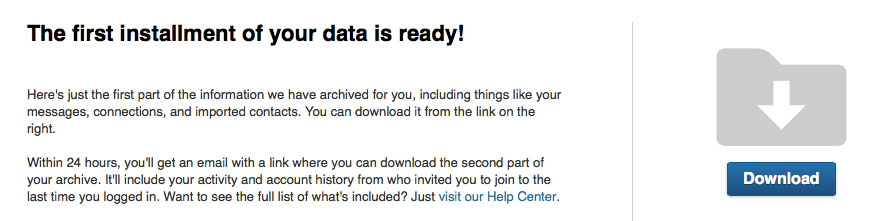
LinkedIn will send you two instalments of your data. The first archive includes your messages, connections and imported contacts. The second archive will include your activity and account history.
The file will be in a spreadsheet format, and won’t be very user-friendly. But, if LinkedIn ever changes so that you cannot access your data anymore, you’ll be the smart one who has it all backed up!

I never knew about this. Thank you Leslie!
Yay! I love when I can provide you with new insights Richard. You’re already very savvy!