
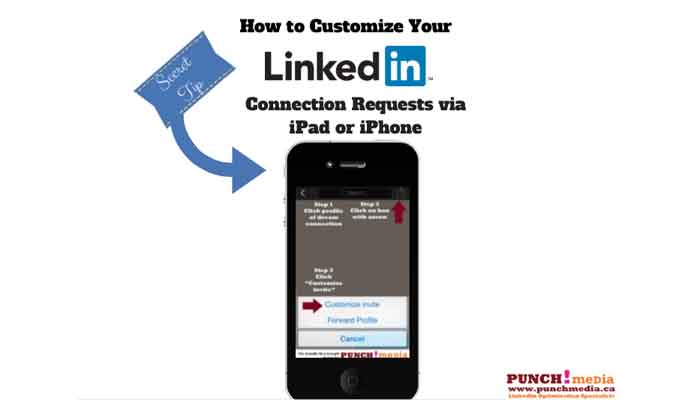
The “Secret” Way To Send A LinkedIn Connection Request via iPhone
You should ALWAYS personalize your connection request on LinkedIn.
Why?
- It’s a good idea to refresh their memory as to how you know them – they will be more likely to accept your invitation.
- It helps to facilitate dialogue and allows you to go further than just adding people to your online Rolodex
- If you don’t know your potential connection, provide a short reason why you want to get to know them:
- Do you know someone in common?
- Did they attend your alma mater?
- Have you read a recent post or article that you found particularly interesting?
My biggest frustration is that the LinkedIn infrastructure doesn’t always allow you to personalize the invitation request.
Typically, my 4-step process has been this:
- I take my handful of business cards home from a conference
- I sit at my desktop, search for each profile and click the “Connect” button from the person’s profile page.
- I personalize each connection request with something such as:
“It was great meeting you at the ______ Conference and I enjoyed talking to you about ____. I look forward to staying in touch and would like to add you to my connections on LinkedIn. Best, Leslie”
Until recently, I didn’t know you can also personalize the connection request on your iPhone or iPad!
It’s been a hidden little secret, that I’m delighted to “expose”!

How To Personalize Your LinkedIn Connection Request From Your iPhone or iPad.
Step #1: Find your prospect or dream connection
Step #2: Click on the box with the arrow in the top right hand corner of your iPhone or iPad screen
Step #3: Click on “Customize Invite”
Step #4: Add your personalized note within the appropriate field
And send.
I believe in quality over quantity, and I don’t accept all connection requests –particularly if I don’t know them. Including a personalized note is such an important aspect of making connections on LinkedIn.
Remember, we don’t exchange business cards without a conversation, and our connections on LinkedIn should be treated the same way.
If you want to learn how to respond to LinkedIn Connection requests WITHOUT accepting the connection, you can find out more here
Now it’s YOUR turn. Have you had a lot of success with turning cold calls into warm introductions using LinkedIn? Has a LinkedIn connection turned into a client?
Looking forward to hearing what you have to say!
 Leslie Hughes is a LinkedIn Optimization Specialist, Professor of Social Media, Corporate Social Media Trainer and Principal ofPUNCH!media
Founded in 2009, with clients such as The Children’s Wish Foundation of Canada, Guardian Life Insurance Company of America, and as a corporate instructor for the “Social Media Marketing Certificate” at The University of Ontario Institute of Technology’s (UOIT) Management Development Centre, Leslie works with organizations to help them gain confidence and develop a strong presence on LinkedIn and other Social Media sites.

[…] or desktop, search for the specific person and click the “Connect” button. (Yes, I know you can also use your iPhone/iPad to do this, but the navigation isn’t simple or […]